







Choosing a web host feels like a “set it and forget it” task. You find a name you recognize, pick the cheapest plan that doesn’t look like a total scam, and hit buy.
But here’s the cold truth: your hosting is the foundation of your entire digital business. If that foundation is cracked, it doesn’t matter how beautiful your design is or how great your content tastes—the whole house is going to shake. In 2026, where user patience is at an all-time low and Google’s AI-driven search algorithms are more ruthless than ever, a bad hosting choice isn’t just a “technical hiccup.” It’s a silent killer.
I’ve seen dozens of promising websites crumble because of avoidable hosting blunders. Here are the 7 biggest web hosting mistakes that are likely killing your website right now, and exactly how to fix them.
Before we go deeper, you can quickly test your website speed using tools like Google PageSpeed Insights.
1. Falling for the “Unlimited” Everything Trap
What This Mistake is
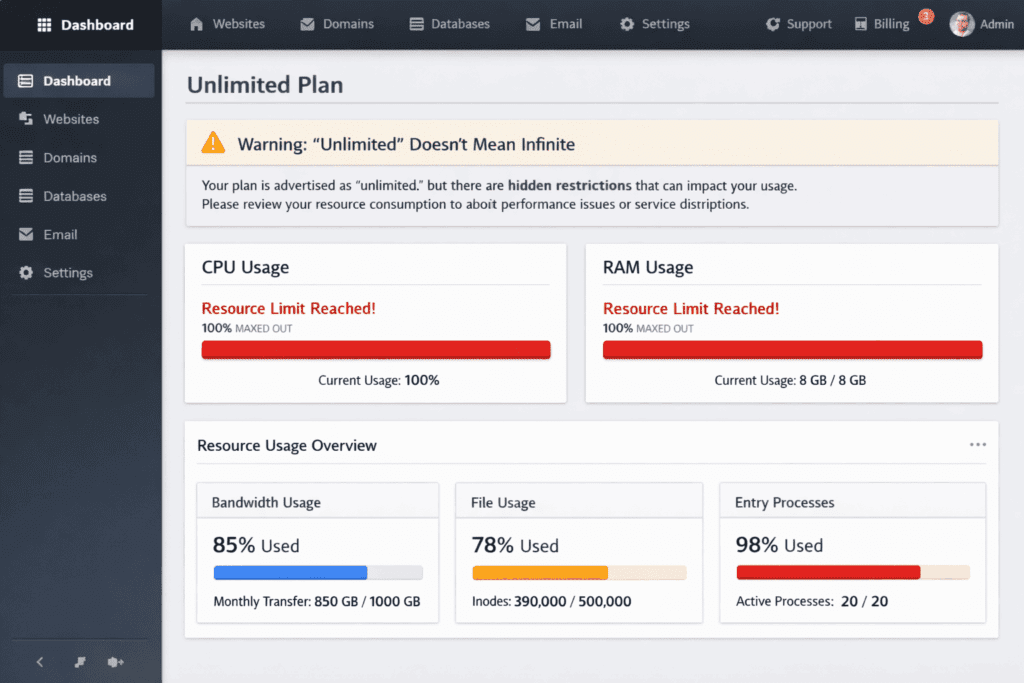
Many beginners flock to plans promising Unlimited Disk Space, Unlimited Bandwidth, and Unlimited Websites for $2.99 a month. In reality, unlimited is a marketing term, not a technical reality. Every server has physical limits on CPU, RAM, and storage.
Why Beginners Make it
It sounds like an incredible deal. Why pay $15/month for 20GB of space when you can pay $3 for infinity? Beginners often assume they are getting a pro setup for a starter price.
Real impact
- Performance: Your site shares resources with thousands of others. If one site gets a traffic spike, yours slows to a crawl.
- Downtime: When you actually start using those unlimited resources, the host will often throttle your account or suspend it for excessive resource usage.
- SEO: Google’s Core Web Vitals measure speed. If your shared server is sluggish, your rankings will tank.
Realistic Example
Imagine a small WordPress blog that finally gets a shoutout on a popular social media thread. Instead of celebrating 5,000 new visitors, the site displays a ‘508 Resource Limit Reached‘ error. The unlimited plan actually had a tiny cap on concurrent connections, killing the site’s biggest growth moment.
Step-by-Step Solution
- Check the Fair Usage Policy: Read the fine print. Look for the actual limits on CPU seconds or Inodes (file counts).
- Estimate your needs: A standard small business site rarely needs more than 5GB of storage.
- Prioritize Quality over Quantity: Choose a host that defines its limits clearly (e.g., “10GB SSD storage, 2 PHP workers”). This ensures those resources are reserved for you.
Quick Takeaway: Unlimited hosting is like an all-you-can-eat buffet; the food is cheap, and they will kick you out if you actually try to eat the whole kitchen.
2. Prioritizing Price Over Performance (The “Cheap Hosting” Curse)
What this Mistake is
Treating web hosting like a commodity where the lowest price wins. Many owners spend $1,000 on a designer but refuse to spend more than $50 a year on hosting.
Why Beginners Make it
The logic behind this is: I’m just starting out, I don’t need much. They see hosting as an overhead cost to be minimized rather than an investment in hosting performance.
Real impact
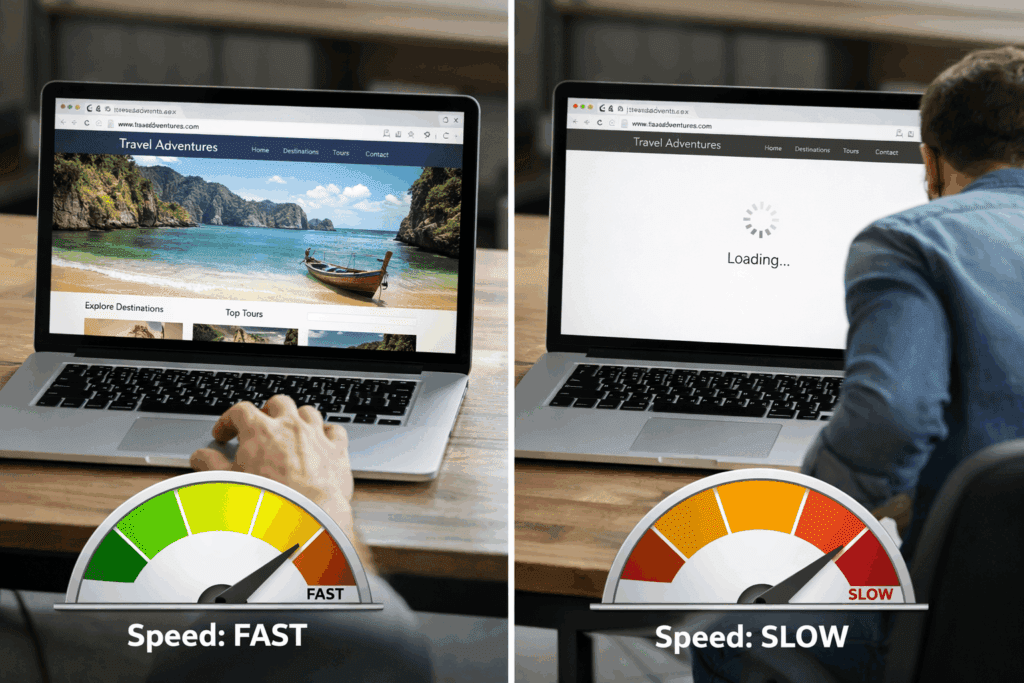
- Website Speed Issues: Cheap hosts use older HDD drives or overcrowded servers. A 1-second delay in load time can drop conversions by 7% to 10%.
- Security: Budget hosts often cut corners on server-side firewalls and malware scanning.
- Support: When things break (and they will), you’ll be stuck in a ticket queue for 48 hours.
Realistic Example
A boutique Shopify-style store (using WooCommerce) hosts on a $4/month plan. The checkout page takes 6 seconds to load. Customers think the site is broken or untrustworthy and leave. The owner saves $10 a month on hosting but loses $500 in abandoned carts.
You can test your website loading time using tools like GTmetrix or Google PageSpeed Insights to see how your hosting is affecting performance.
Step-by-Step Solution
- Look for SSD or NVMe Storage: Ensure the host uses modern, fast drives.
- Check for Managed Services: If you use WordPress, look for Managed WordPress Hosting. It’s slightly pricier but includes optimizations that make your site fly.
- Test the Support: Before buying, send a technical question to their live chat. If they take 20 minutes to give a scripted answer, move on.
Quick Takeaway: Saving $10 a month isn’t worth losing 20% of your customers to a slow-loading screen.
3. Ignoring Server Location
What this Mistake is
Choosing a hosting company based in the US when 90% of your audience is in the UK or India. Physical distance matters. Data has to travel through cables, and the further it goes, the longer the wait (latency).

Why Beginners Make it
Many of the biggest hosting brands are US-based and have the loudest marketing. Beginners often don’t realize they can choose a data center location during signup.
Real impact
- Latency: Even a well-optimized site will feel heavy if the server is halfway across the world.
- SEO Impact of Hosting: Search engines detect where your server is. For local SEO, having a local server (or at least a very fast one) gives you a slight edge.
- User Experience: High” Time to First Byte” (TTFB) makes the site feel unresponsive.
Realistic Example
A local law firm in Melbourne, Australia, uses a host with servers in New York. Every time a local client clicks their site, there is a 300ms delay just for the data to cross the Pacific. The site feels laggy, even though the content is simple.
Step-by-Step Solution
- Identify your audience: Use Google Analytics to see where your visitors live.
- Select a Data Center: Most reputable hosts (like SiteGround, Cloudways, or Hostinger) let you pick a server location during checkout. Pick the one closest to your users.
- Use a CDN: If your audience is global, use a Content Delivery Network like Cloudflare to cache your site on servers worldwide.
To fix this, you can use a CDN like Cloudflare, which stores your website data across multiple global servers.
Quick Takeaway: Physical distance equals digital delay. Put your data where your customers’ eyes are.
Quick Recap: The Basics Matter
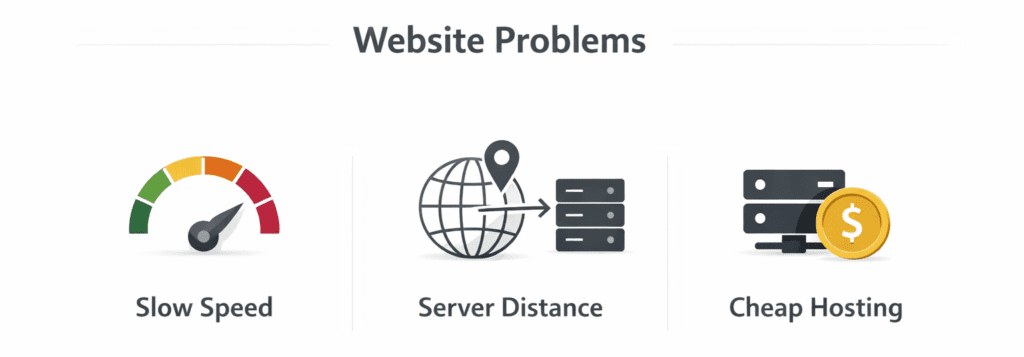
Before we move on, remember: Hosting isn’t just a place to store files. It’s the engine of your site. If the engine is underpowered (Mistake #1 & #2) or too far away (Mistake #3), your website will never reach top speed, no matter how much you optimize your images.
4. Neglecting Automated Backups (The “Hope” Strategy)
What this Mistake is
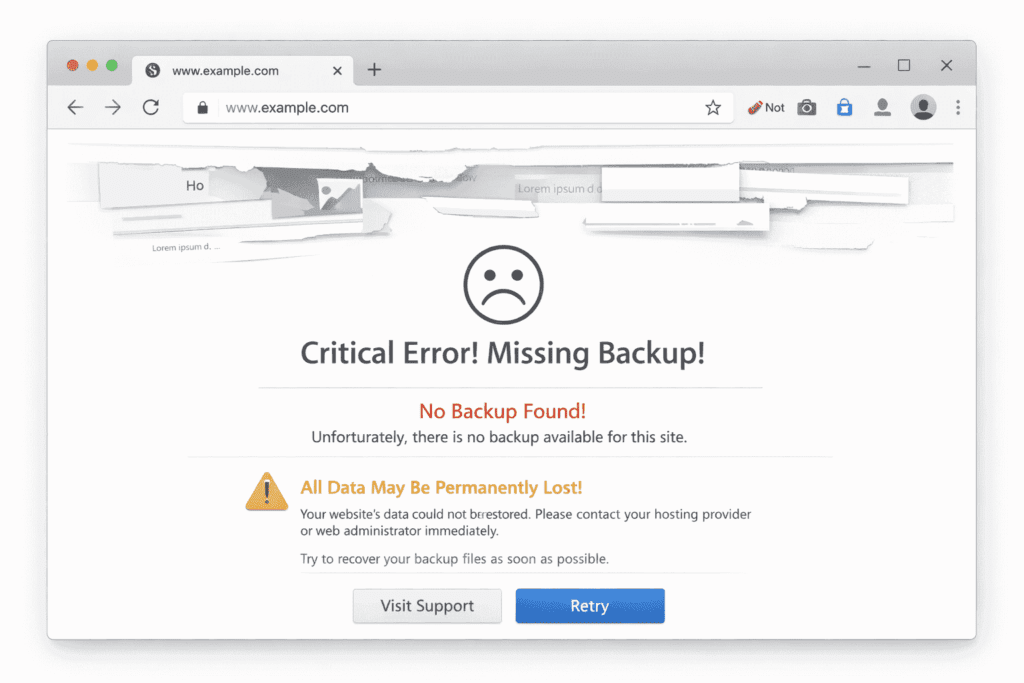
Assuming your host is backing up your site for you—or worse, thinking you do not need backups because nothing has happened yet.
Why Beginners Make it
It is an out of sight, out of mind problem. Beginners often think the daily backups mentioned in the marketing are guaranteed and easy to restore.
Real impact
- Total Data Loss: If a plugin update breaks your site or a hacker gets in, you could lose years of work in seconds.
- Downtime: Trying to manually rebuild a site can take days of downtime, killing your SEO rankings.
- Recovery Costs: Hiring an expert to rescue a broken site without a backup can cost hundreds of dollars.
Realistic Example
An influencer updates three WordPress plugins at once. One plugin is incompatible with their theme, causing a White Screen of Death. They check their host, only to find the free backups were only kept for 24 hours and the last one is already corrupted. The site is gone.
Step-by-Step Solution
- Verify the Backup Policy: Does the host offer daily backups? How long are they kept? (Aim for at least 14–30 days).
- Check the Restore Process: Is it a one-click restore, or do you have to contact support and pay a fee?
- Always Have an Off-Site Backup: Use a plugin like UpdraftPlus or a service like BlogVault to send a second copy of your site to Google Drive or Dropbox.
You can automate backups using tools like UpdraftPlus or BlogVault to ensure your data is always safe.
Quick Takeaway: A backup is only a backup if it is stored somewhere else and you know how to use it.
5. Overlooking Security Features (Beyond the SSL)
What this Mistake is
Thinking a Free SSL Certificate means your website is secure. An SSL only encrypts the connection; it does not stop hackers from guessing your password or exploiting a weak plugin.
Why beginners make it
The green padlock (or the modern “tune” icon) gives a false sense of mission accomplished. Beginners do not realize that security needs to happen at the server level.
Real impact
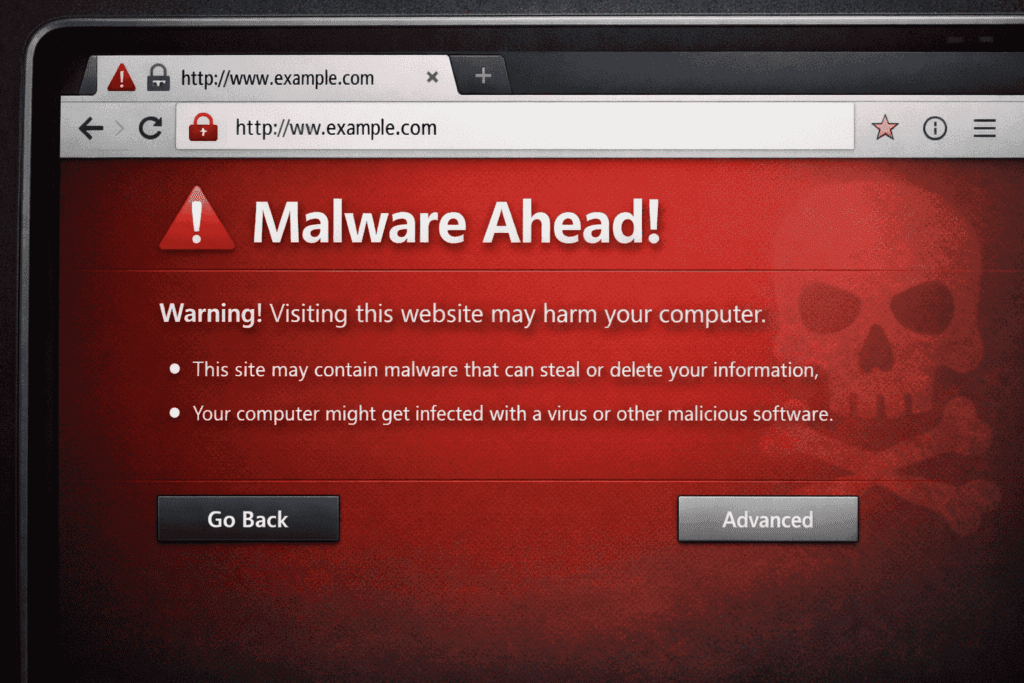
- Blacklisting: If your site gets infected and starts sending spam, Google will put a This site may be hacked warning in search results, killing your traffic.
- Data Breaches: If you collect user emails or payments, a breach can lead to legal nightmares.
- Resource Drain: Malware often uses your server’s power to mine crypto, slowing your site to a crawl.
Realistic Example
A small blog is hacked via a brute force attack because the host didn’t have basic login protection. The hacker redirects all the blog’s traffic to a gambling site. By the time the owner notices, Google has de-indexed the site for malicious activity.
Step-by-Step Solution
- Look for a WAF: Ensure your host provides a Web Application Firewall.
- Malware Scanning: Choose a host that proactively scans for malicious code.
- Server-Level Protection: Look for features like “BitNinja,” “Imunify360,” or custom brute-force protection.
For added protection, you can use security tools like Wordfence to protect your site from attacks.
Quick Takeaway: Your SSL is your front door lock and server security is the gated community and the alarm system. You need both.
6. Falling for the Long-Term Trap Without Testing
What this Mistake is
Signing up for a 3-year or 4-year hosting contract just to get the lowest monthly price, without knowing if the host is actually any good.

Why Beginners Make it
Hosting companies offer massive discounts (e.g., 70% off) if you pay for 48 months upfront. Beginners see the savings and ignore the risk of being stuck with a bad provider.
Real impact
- Locked In: If the service becomes slow after six months, you have already paid for three more years.
- Migration Headaches: Switching hosts is annoying. If you have prepaid, you are emotionally and financially stuck with a bad product.
- Renewal Shock: Those $2/month plans often renew at $15/month after the initial term ends.
Realistic Example
A startup pays $150 for 3 years of Starter Hosting. Within six months, their traffic grows, and the site becomes painfully slow. To upgrade to a better plan, the host charges them full price because they already used their introductory discount.
Step-by-Step Solution
- Start Small: Pay for one year maximum initially. This gives you enough time to test performance through all seasons.
- Check Renewal Rates: Always look at what the price will be after the discount ends.
- Read Recent Reviews: Don’t look at Best Hosting 2026 lists (which are often affiliate-based). Look at recent Reddit threads or Trustpilot reviews from the last 3 months.
You can monitor uptime and performance using tools like UptimeRobot which is free.
Quick Takeaway: Do not marry a host on the first date. A one-year commitment is a much safer way to test the relationship.
7. Not Checking Scalability
What this Mistake is
Choosing a fixed hosting environment that makes it nearly impossible to grow. When your traffic doubles, your site should not have to go through a week-long migration process to stay online.
Why Beginners Make it
Beginners focus on the now. They do not plan for the “what if we are successful?” scenario.
Real impact
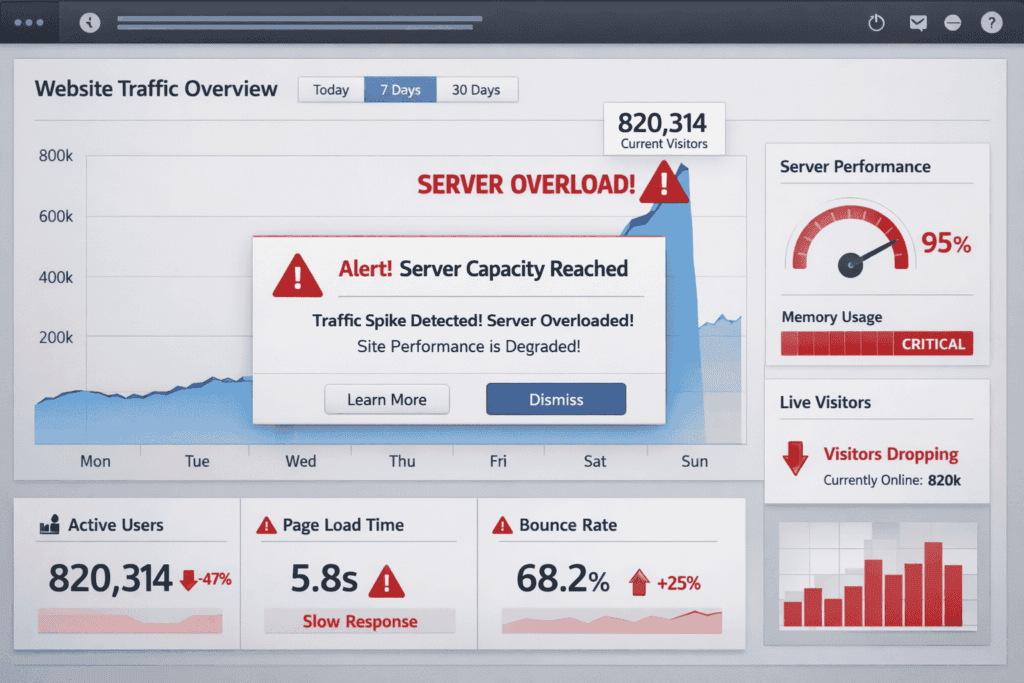
- Growth Friction: When you run a successful ad campaign, your site crashes.
- Costly Migrations: If your host does not offer easy upgrades (e.g., from Shared to VPS), you have to pay a developer to move your site to a new company.
- Downtime: Moving a site to a new server often involves DNS changes that can take 24 hours to settle.
Realistic Example
A local charity runs a holiday fundraiser. Their shared hosting can not handle the 200 simultaneous donors. Because the host does not have an instant upgrade button, the site stays down for the most important 4 hours of their year.
Step-by-Step Solution
- Check the Upgrade Path: Does the host offer VPS or Cloud Hosting? Can you upgrade with a single click?
- Ask About “Staging” Sites: A host that offers “One-click Staging” is usually more advanced and built for growth.
- Look for Cloud Infrastructure: Providers using Google Cloud or AWS (like Kinsta or Cloudways) allow you to scale resources (RAM/CPU) almost instantly.
Quick Takeaway: Choose a host that can grow with you, so you do not have to move house every time you buy a new piece of furniture.
Quick Checklist: How to Choose the Right Hosting
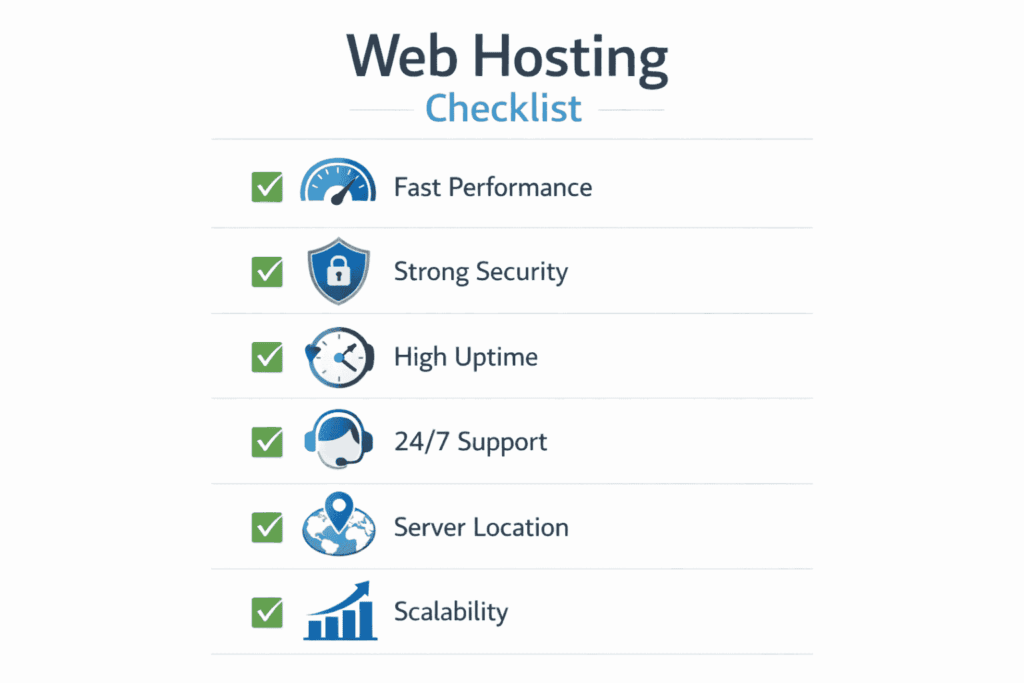
Use this as your “BS Detector” when shopping for a new host:
- Storage Type: Is it SSD or NVMe? (Avoid HDD at all costs).
- Uptime Guarantee: Is it 99.9% or higher? (Check if they have a status page).
- Backups: Are they automated, daily, and off-site?
- Support: Do they offer 24/7 Live Chat? (Test it now!).
- SSL: Is a Let’s Encrypt (free) SSL included?
- Data Center: Can you choose a server near your audience?
- Renewal Price: What is the price after the first year?
FAQ
Q: Can I change my web host later if I make a mistake?
Yes, but it’s a chore. You have to move all your files, databases, and emails. Many good hosts offer a “Free Migration” service to help you switch to them, but it’s still better to get it right the first time.
Q: Is “Managed WordPress Hosting” worth the extra money?
If your site is built on WordPress and you aren’t a server expert, yes. They handle security, updates, and speed optimizations for you, which saves you hours of troubleshooting.
Q: How do I know if my current hosting is “killing” my site?
Check your site speed using a tool like PageSpeed Insights. If your “Time to First Byte” (TTFB) is higher than 500ms, your server is likely the bottleneck.
Q: Does hosting really affect my Google ranking?
Absolutely. Google uses Core Web Vitals as a ranking factor. If your host is slow or has frequent downtime, Google will eventually prioritize faster, more reliable competitors over you.
Q: Is “unlimited bandwidth” a lie?
Mostly. While you might not get a bill for “extra” bandwidth, most hosts will slow down your site (throttling) if you use too much, effectively making the “unlimited” claim useless for high-traffic sites.
What You Should Do Next
Don’t let analysis paralysis keep you on a bad hosting plan. Here is your 3-step action plan:
- Run a Speed Test: Go to GTmetrix or PageSpeed Insights and check your “Initial Server Response Time.” If it’s over 600ms, your hosting is hurting you.
- Check Your Backups: Log into your hosting panel right now. Find the backup section. Do you see a successful backup from the last 24 hours? If not, set one up immediately.
- Review Your Contract: Find out when your hosting expires and what the renewal price is. If it’s going to jump from $3 to $15 for a slow server, start looking for a better alternative now so you can migrate before the bill hits.
0 Comments