






In 2026, building a website has never been easier, and Hostinger has emerged as one of the fastest, most reliable, and affordable hosting providers.
👉 Explore Hostinger Hosting Plans: https://www.hostinger.com/
Whether you’re a beginner starting your first blog, a freelancer showcasing your portfolio, or a small business looking to scale online, Hostinger WordPress hosting offers speed, security, and ease of use.
Starting a website might seem daunting if you’ve never worked with hosting or WordPress before. But with Hostinger’s user-friendly hPanel, optimized servers, and affordable plans, you can launch a website in less than 30 minutes.
In this guide, we’ll walk you through everything you need to know about setting up WordPress on Hostinger, from selecting the right hosting plan to optimizing your site for speed, security, and SEO. We’ll also cover common troubleshooting issues, recommended plugins, and pro tips to help your website succeed.
Why Choose Hostinger for WordPress Hosting
Hostinger stands out because it combines speed, affordability, and a beginner-friendly interface, making it ideal for anyone starting their online journey.
Key Features in Detail
- Fast Loading Speeds: Hostinger’s servers are optimized for WordPress with LiteSpeed caching technology. A faster website improves user experience and SEO rankings. For example, a blog post that loads in 1 second is more likely to keep readers engaged than one that takes 4–5 seconds.
- High Uptime: Hostinger guarantees 99.9% uptime, meaning your website stays online almost all the time. This is crucial for businesses that depend on online traffic.
- Affordable Plans: Starting at just ₹199/month, Hostinger makes it possible for beginners and small businesses to launch without breaking the bank.
- User-Friendly hPanel: Unlike complex cPanels, Hostinger’s hPanel allows you to manage domains, databases, emails, and WordPress installations with a few clicks.
- Excellent Support: 24/7 live chat support is available in multiple languages, so you can get help whenever you need it.
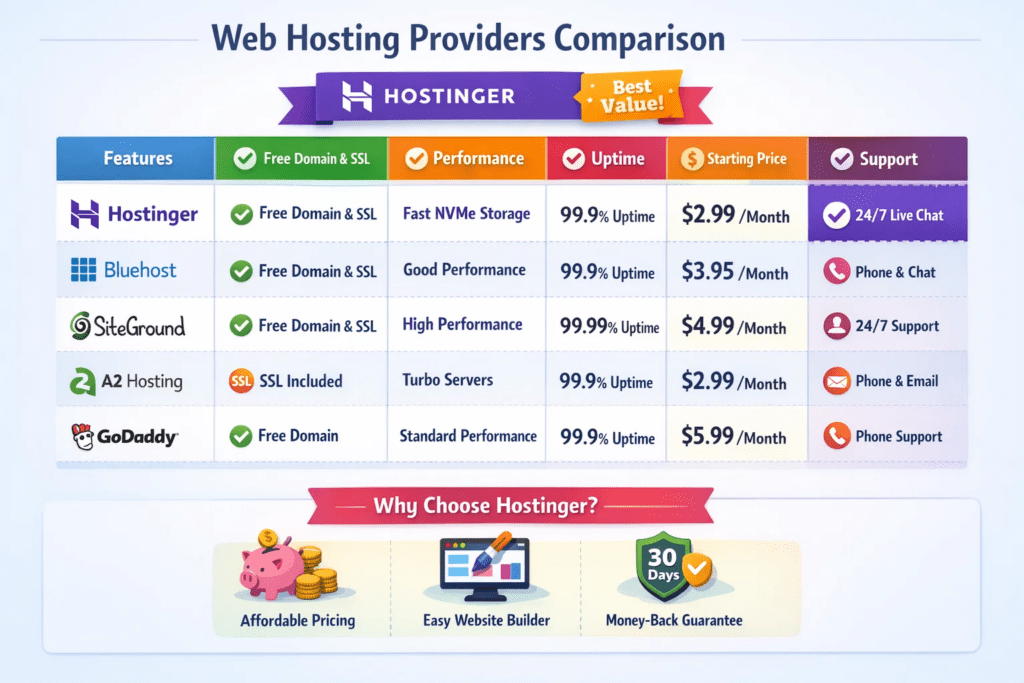
Comparison with Other Hosts
| Feature | Hostinger | Bluehost | SiteGround |
|---|---|---|---|
| Speed | Excellent | Good | Very Good |
| Uptime | 99.9% | 99.9% | 99.99% |
| Price | Low | Medium | Medium |
| WordPress Optimization | Built-in | Manual | Built-in |
| Support | 24/7 Chat | 24/7 Chat | 24/7 Chat |
Mini Analysis: While Bluehost and SiteGround are good options, Hostinger excels in cost-effectiveness and beginner-friendly setup, making it perfect for small websites, blogs, and startups.
Hostinger Hosting Plans Explained
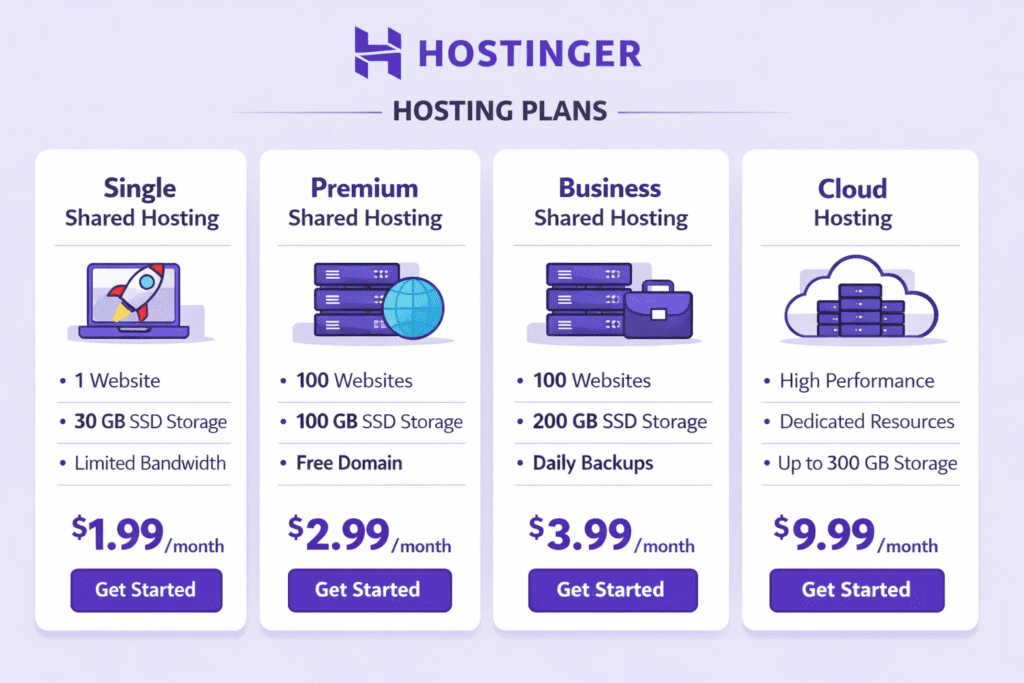
Hostinger offers multiple hosting plans to cater to different needs:
1. Shared Hosting
- Ideal for beginners and small blogs
- Affordable and includes free SSL
- Resource limitations may affect large traffic sites
2. WordPress Hosting
- Optimized for WordPress performance
- Includes caching, security, and SSL
- Automatic updates for WordPress core
3. Cloud Hosting
- Scalable resources for growing websites
- High performance for eCommerce or business sites
- Slightly higher cost than shared hosting
4. VPS Hosting
- Full control over server settings
- Suitable for advanced users and developers
- Requires technical knowledge
Recommended Plan for Beginners:
👉 Check Hostinger WordPress Hosting:
https://www.hostinger.com/wordpress-hosting
- WordPress Starter Plan – Affordable, fast, includes 1 website, free SSL, and WordPress optimization features
- Price Range: ₹199 – ₹499/month (2026 pricing)
Step-by-Step WordPress Setup on Hostinger
Setting up WordPress on Hostinger is straightforward thanks to hPanel.
Step 1: Sign Up and Choose a Plan
Visit Hostinger official website and choose a WordPress hosting plan.
👉 Start with Hostinger:
https://www.hostinger.com/
- Visit Hostinger.com
- Select WordPress Hosting
- Pick a plan based on your needs
- Complete account registration
Step 2: Register a Domain
- Search for your preferred domain
- Register it via Hostinger (free domains are included in some plans)
- Make sure the domain name reflects your brand or blog topic
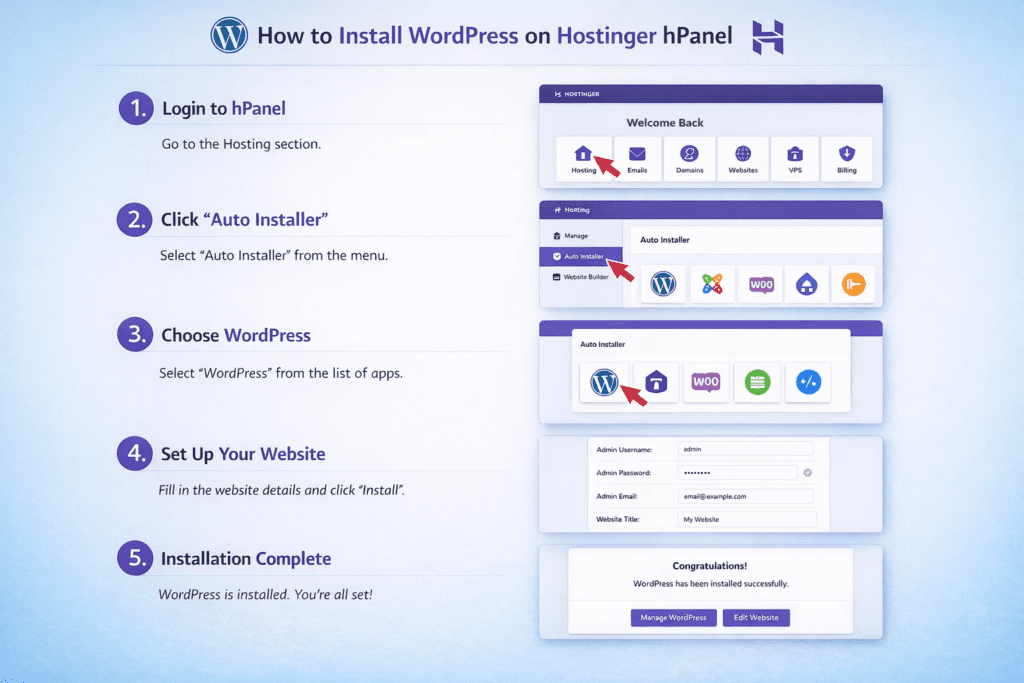
Step 3: Install WordPress
- Log in to hPanel
- Navigate to Auto Installer → WordPress
- Fill in your website title, admin username, and password
- Click Install
Tip: Use a secure username and strong password for admin login to improve security.
Step 4: Basic Configuration
- Install a beginner-friendly theme like Astra, GeneratePress, or Neve
- Add essential plugins:
- Yoast SEO (for SEO)
- LiteSpeed Cache (for speed optimization)
- UpdraftPlus (for backups)
- Configure settings:
- Permalinks → Post name
- Site title and tagline
- General settings (timezone, language)
Tip: Start with a lightweight theme to ensure faster loading speeds and better SEO.
Optimizing WordPress on Hostinger
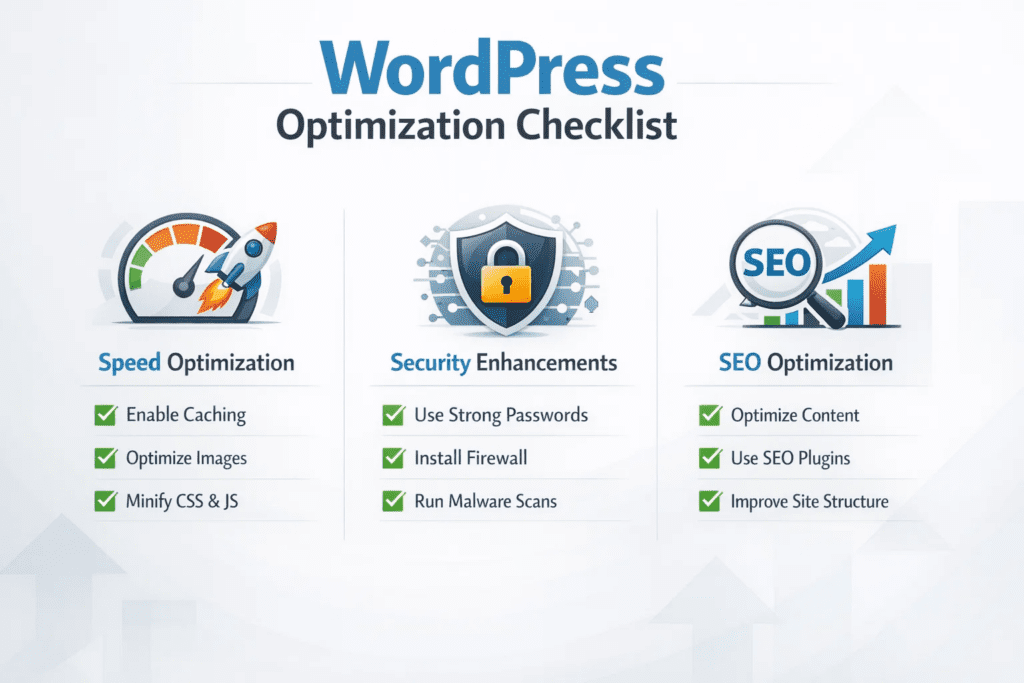
Once WordPress is installed, optimizing your site is crucial for speed, security, and SEO.
Speed Optimization
- Enable caching using LiteSpeed Cache
- Compress images with Smush or Imagify
- Use a lightweight, responsive theme
- Avoid unnecessary plugins to reduce server load
Security Measures
- Activate free SSL certificate
- Enable two-factor authentication for WordPress login
- Schedule regular backups with UpdraftPlus
- Keep plugins and themes updated
SEO Settings
- Install Yoast SEO or RankMath
- Set proper titles, meta descriptions, and headings
- Submit XML sitemap to Google Search Console
- Use readable URLs (permalinks) and alt text for images
Troubleshooting Common Hostinger Issues
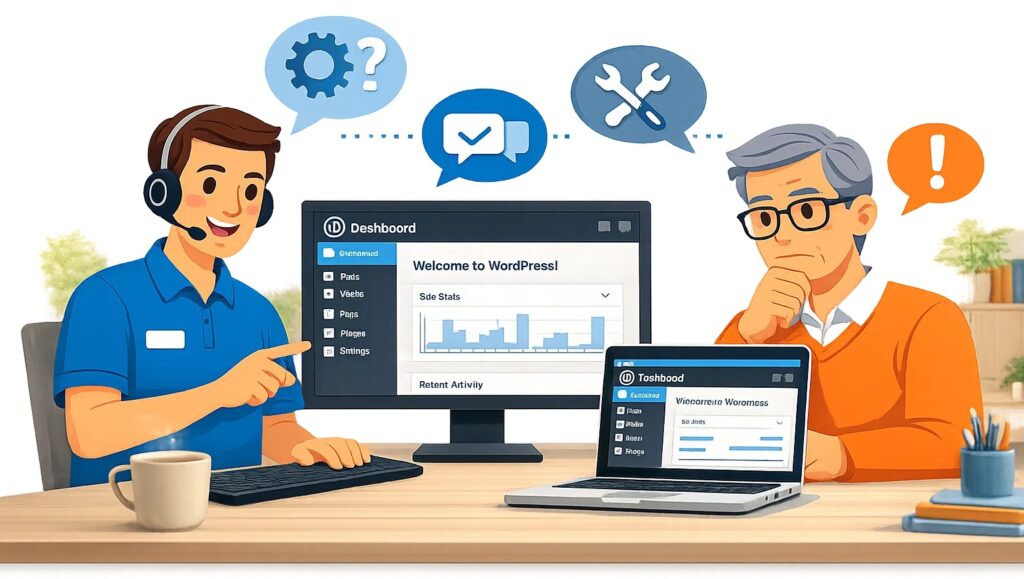
Even beginners may encounter minor issues. Here’s how to address them:
- Error 500 or 502: Often caused by plugin or theme conflicts. Disable recently installed plugins to test.
- Slow Website: Enable caching, optimize images, or upgrade your hosting plan if traffic increases.
- Login Issues: Reset WordPress password via hPanel or database if necessary.
- Support: Contact Hostinger’s 24/7 live chat for help
Tips & Tricks for a Smooth Hosting Experience
- Set up automatic backups to prevent data loss
- Use staging environment for testing changes before going live
- Connect professional emails using Hostinger’s email service
- Recommended beginner-friendly plugins:
- Elementor (drag-and-drop page builder)
- WPForms (contact forms)
- MonsterInsights (analytics for WordPress)
- Consider adding security plugins like Wordfence

Conclusion
Hostinger is a top choice in 2026 for anyone looking to launch a fast, reliable WordPress site. Its combination of affordability, speed, security, and beginner-friendly tools makes it perfect for bloggers, small businesses, and hobbyists alike. Start your WordPress site today with Hostinger and experience fast, hassle-free hosting.

FAQ
Q1: Can I install WordPress manually on Hostinger?
A1: Yes, but using the auto installer is easier and recommended for beginners.
Q2: Does Hostinger provide free SSL?
A2: Yes, all WordPress plans include free SSL certificates.
Q3: Can I upgrade my hosting plan later?
A3: Absolutely, Hostinger allows seamless plan upgrades.
Q4: Is Hostinger good for eCommerce websites?
A4: Yes, Hostinger’s WooCommerce hosting is optimized for online stores.
Q5: How do I contact Hostinger support?
A5: 24/7 live chat support via hPanel.
Q6: Which plugins are essential for beginners?
A6: Yoast SEO, LiteSpeed Cache, UpdraftPlus, Elementor, WPForms, MonsterInsights.
Q7: Can I use my own domain purchased elsewhere?
A7: Yes, you can point external domains to Hostinger via DNS settings.
0 Comments