






Design used to be a skill limited to professionals. Creating graphics required expensive software, technical knowledge, and years of practice. Today, tools like Canva have completely changed that reality. Now anyone — even someone with zero design experience — can create professional-quality visuals in minutes.
👉 Try Canva here: https://www.canva.com/
Whether you want to design social media posts, marketing banners, presentations, thumbnails, or brand graphics, Canva makes the entire process simple and accessible. This beginner guide will teach you exactly what Canva is, how it works, and how you can use it to design like a pro without needing any design background.
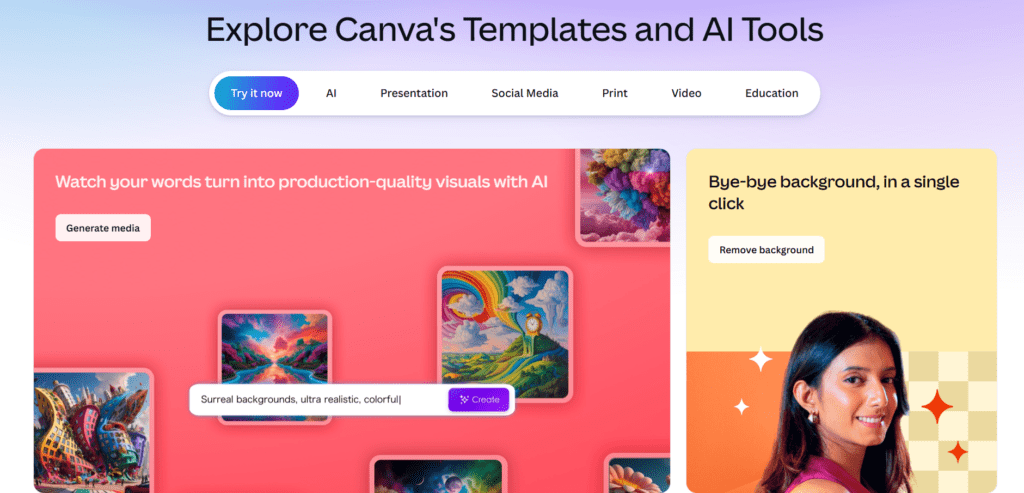
What is Canva?
Canva is a cloud-based graphic design platform that allows users to create visual content using drag-and-drop tools. Instead of starting with a blank canvas and designing everything manually, Canva provides ready-made templates, fonts, images, icons, and layouts that you can customize instantly.
Because it runs online, you don’t need to install any software. You can access Canva from any device — desktop, tablet, or mobile — simply by logging into your account.
👉 Official Canva Website: https://www.canva.com/
Why Canva Is Ideal for Beginners
Most design software tools are complicated because they are built for professionals. Canva is different. It was specifically designed for beginners and non-designers.
Here’s why Canva is beginner-friendly:
- Drag-and-drop editor (no technical skills needed)
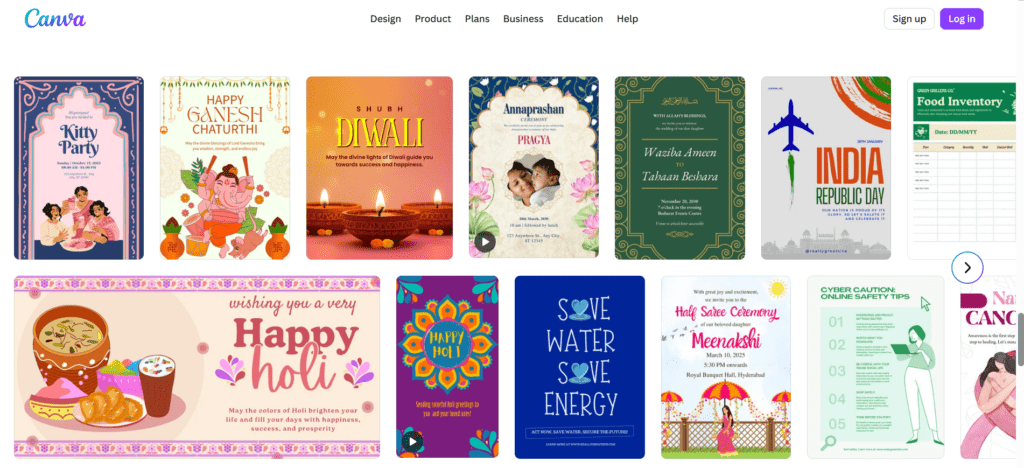
- Thousands of templates ready to edit
- Automatic size presets for social media platforms
- Built-in stock images and icons
- One-click background remover
- Mobile and desktop compatibility
This simplicity removes the biggest barrier beginners face — learning complicated software. Instead of learning design software, you can focus directly on creating content.
What Can You Design with Canva?
Canva is not limited to one type of graphic. It’s an all-in-one design platform capable of creating almost every type of visual content.
Most Popular Canva Design Uses
- Instagram posts and reels covers
- Pinterest pins
- YouTube thumbnails
- Presentations
- Flyers and posters
- Business cards
- Resumes
- Infographics
- Ads and banners
- Website graphics
- Product mockups
Instead of using multiple tools for different design needs, Canva lets you create everything in one place, which saves both time and effort.
Canva Free vs Canva Pro — Full Comparison
Canva offers both free and paid versions. The free version is powerful enough for most beginners, but the Pro version unlocks advanced tools that save time and improve design quality.
Free Plan Features
- thousands of templates
- basic images and graphics
- standard fonts
- manual resizing
- downloads in multiple formats
Pro Plan Features
- premium templates and elements
- background remover tool
- brand kit storage
- one-click resize tool
- premium stock photos
- animation tools
- content scheduler
When Should You Upgrade?
Upgrade to Pro if you:
- design content regularly
- manage social media accounts
- create marketing materials
- run a business or brand
- design for clients
👉 Explore Canva Pro features:
https://www.canva.com/pro/
If you design occasionally, free is enough. If you create frequently, Pro dramatically speeds up your workflow.
Step-by-Step Canva Tutorial for Beginners
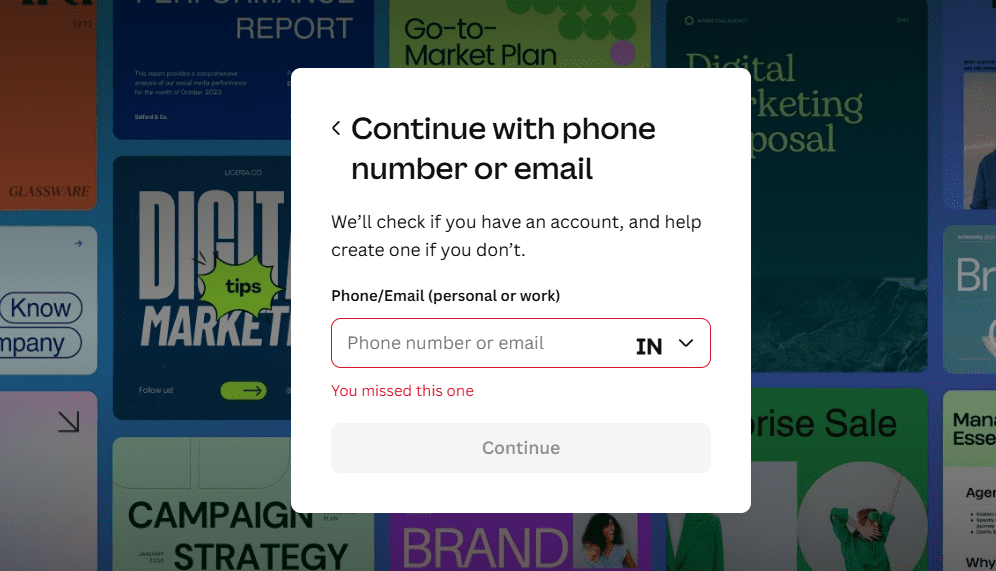
Step 1 — Create Your Account
Sign up using email, Google, or Facebook. Registration takes less than a minute and gives you instant access to templates and tools.
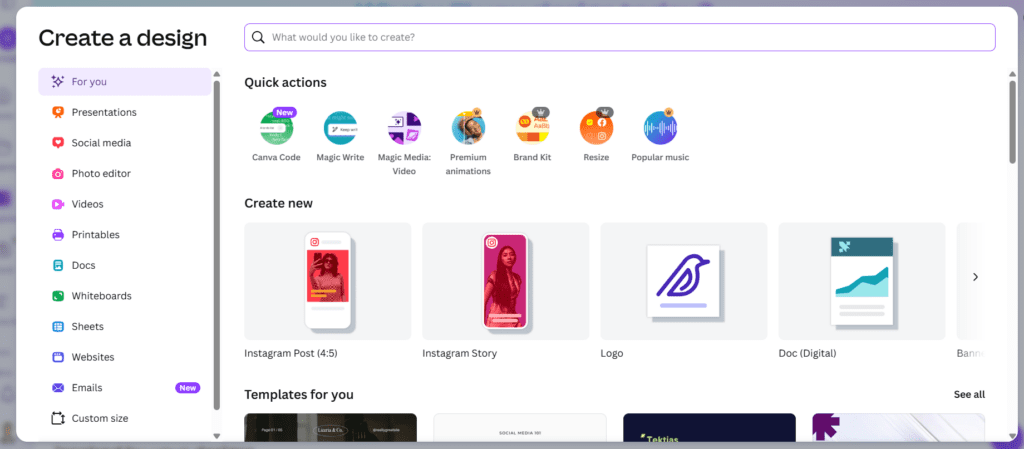
Step 2 — Choose Design Format
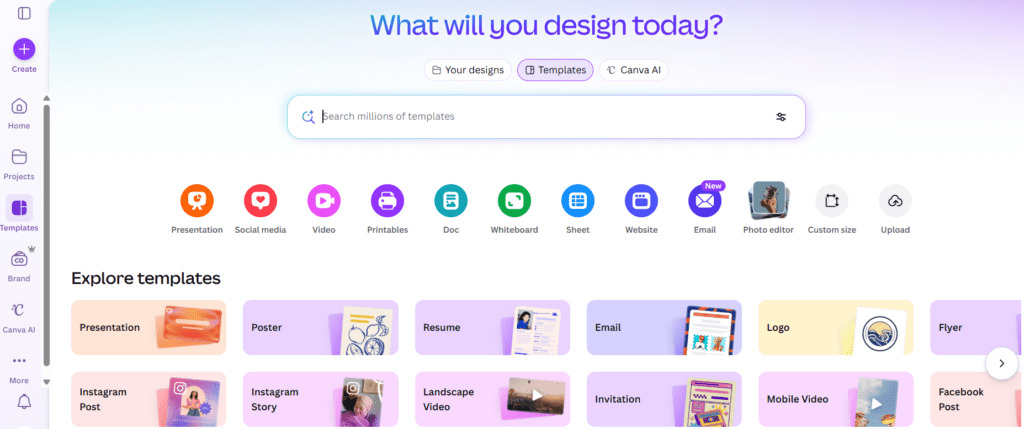
From the homepage, choose what you want to create. Canva automatically sets correct dimensions for each format, so you don’t need to worry about sizing.
Examples:
- Instagram post
- Presentation
- Poster
- Custom size
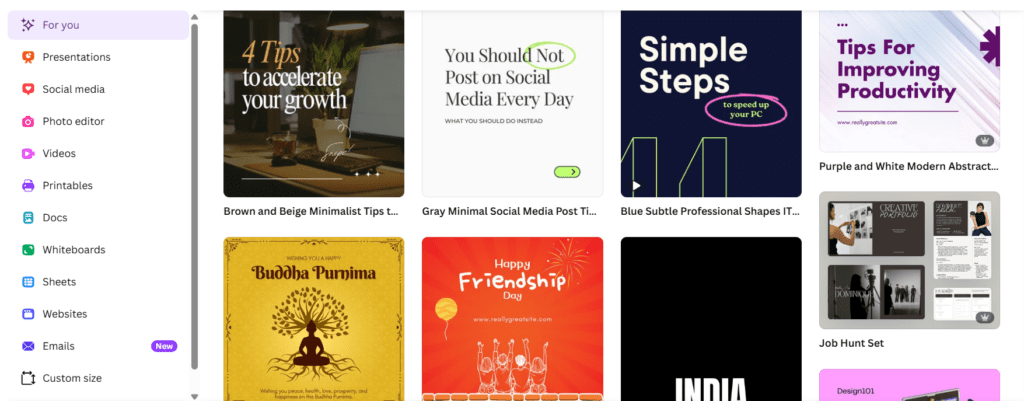
Step 3 — Select a Template
Templates are categorized by purpose and industry.
👉 Browse Canva Templates:
https://www.canva.com/templates/
Simply search for what you want and choose one that matches your goal.
Tip: Don’t pick a random template. Choose one that already matches your content style to reduce editing time.
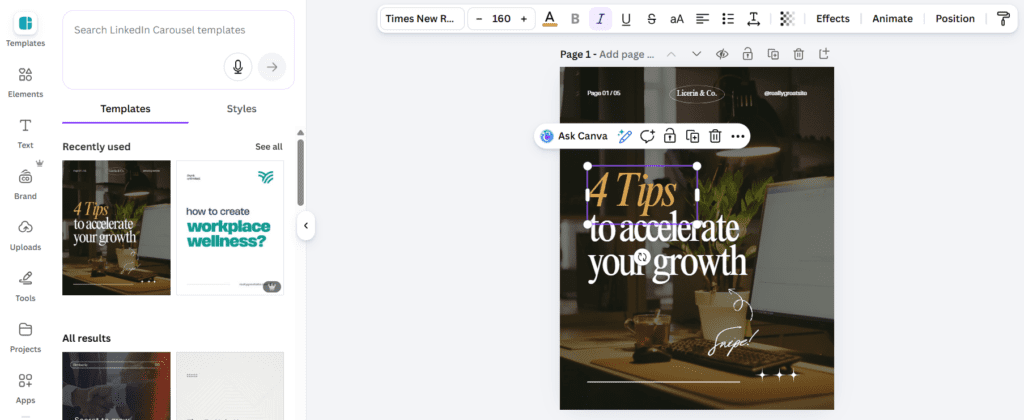
Step 4 — Customize Design
Click any element to edit it:
- text
- colors
- shapes
- icons
- images
- fonts
Everything is editable instantly without complex settings.
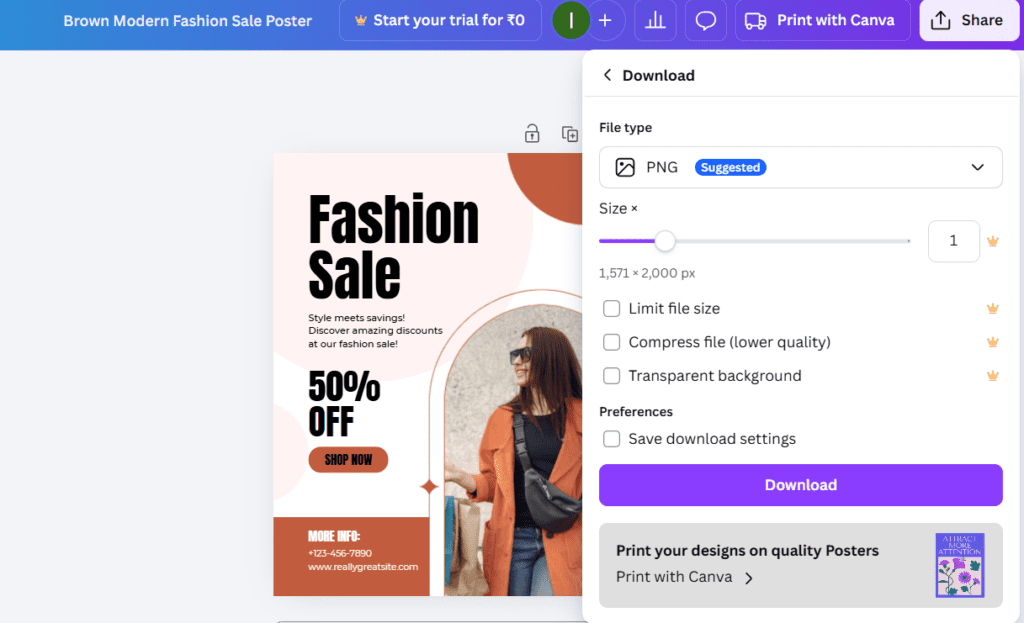
Step 5 — Download or Share
Once finished, you can download your design in formats like PNG, JPG, or PDF, or share it directly online.
Canva Tools Every Beginner Should Learn
Understanding Canva’s built-in tools will dramatically improve your designs.
Background Remover
Automatically removes image backgrounds in one click. Perfect for product photos and profile graphics.
- Background Remover — removes image backgrounds instantly
- Magic Resize — converts one design into multiple sizes
- Brand Kit — stores logo, fonts, and colors
- Animation Tool — adds motion effects
- Text Effects — adds shadows, outlines, curves, glow
Canva Design Tips to Make Graphics Look Professional
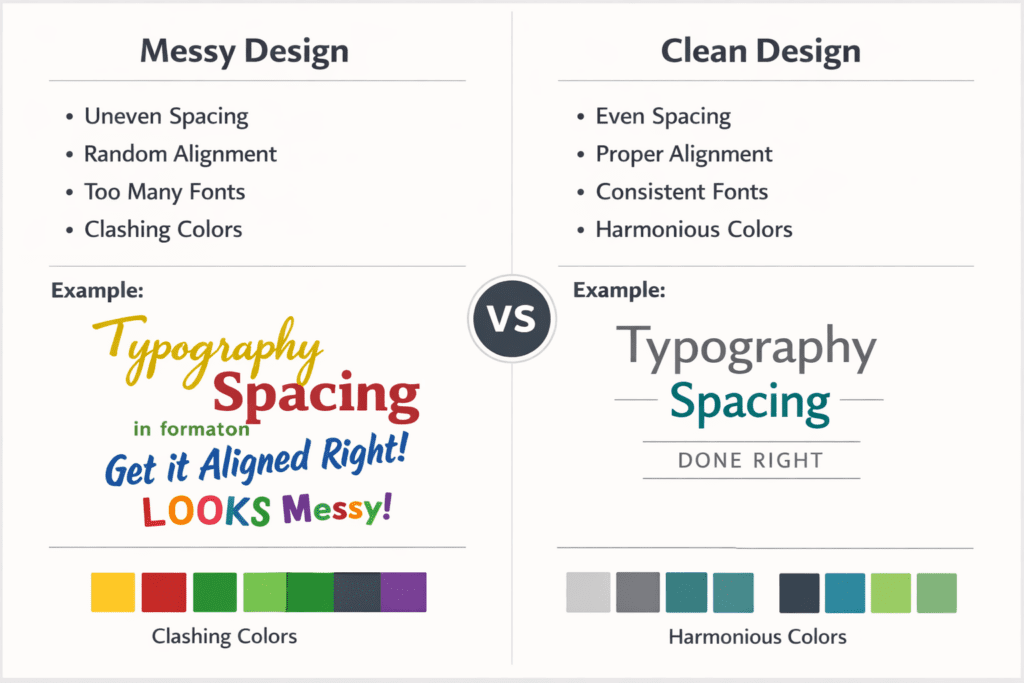
Even with a powerful tool, design quality depends on how you use it. These tips will instantly improve your results.
- Use Limited Fonts: Stick to two fonts maximum. Too many fonts make designs look messy.
- Choose Consistent Colors: Use a fixed color palette for brand identity.
- Use White Space: Empty space makes designs look clean and professional.
- Align Everything Properly: Alignment instantly improves visual balance.
- Use High-Quality Images: Low-quality images ruin even the best design.
Common Canva Mistakes Beginners Make
Avoid these mistakes if you want professional-looking graphics:
- overcrowding designs
- using too many colors
- adding long paragraphs of text
- ignoring spacing
- choosing flashy fonts
- overusing animations
Fixing these alone can improve your design quality dramatically.
Canva for Business, Creators & Freelancers
Canva isn’t just for casual users. It’s widely used by professionals and companies because it saves time and simplifies design tasks.
Businesses use Canva for:
- marketing graphics
- ad creatives
- social media posts
- presentations
- branding kits
Freelancers use Canva for:
- client work
- portfolio graphics
- content creation
- thumbnails
Students use Canva for:
- presentations
- assignments
- posters
Canva vs Traditional Design Software
Compared to tools like Photoshop or Illustrator, Canva focuses on simplicity rather than complexity.
| Feature | Canva | Traditional Software |
| Ease of Use | Very Easy | Complex |
| Learning Time | Minutes | Weeks |
| Price | Low | Expensive |
| Templates | Included | Limited |
| Cloud Access | Yes | No |
For beginners and online creators, Canva is usually the better choice.
Is Canva Worth Using in 2026?
Yes — especially for beginners.
Canva continues adding new features every year, including AI tools, automation, and smart design suggestions. These updates make designing faster and easier than ever.
If your goal is to create professional visuals quickly without learning complex software, Canva is one of the best tools available today.
Frequently Asked Questions
Is Canva good for beginners?
Yes. Canva was designed specifically for beginners and non-designers.
Do I need design experience?
No. Templates and drag-and-drop editing remove the need for experience.
Can I use Canva for business graphics?
Yes. Many businesses use Canva for marketing materials and branding.
Is Canva free?
Yes. There is a free plan. Paid plans add advanced features.
Final Verdict
Canva is one of the easiest and most powerful design tools available today.
👉 Start designing with Canva:
https://www.canva.com/
It combines simplicity, speed, and professional results into a single platform that anyone can use. Whether you want to design social media posts, marketing graphics, presentations, or branding visuals, Canva makes it possible without technical skills.
For beginners starting online, learning Canva is not just helpful — it’s a valuable digital skill that can save time, improve content quality, and boost productivity.
Recommended tool guides like this are regularly shared on bizmarttools to help users discover the right platforms for their needs.

0 Comments